Theme Builder
Theme Builder lets you design your site's global Header, Footer, and full‑page Body layouts with the visual page builder, bundle them into a Template, and assign each Template to parts of your site with plain‑language conditional rules ("Use On / Exclude From"). On every request the right header, body, and footer are chosen for you; when no Template matches, your Theme Settings header and footer remain as the baseline.
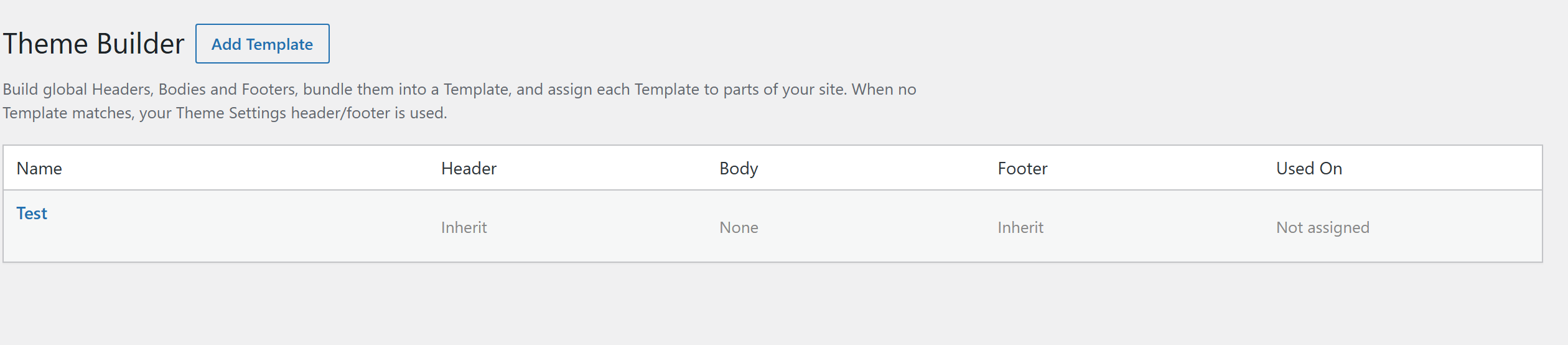
The Theme Builder ships as a download‑only extension — its own GitHub repo
(UnysonPlus/UnysonPlus-Theme-Builder-Extension), not bundled in the plugin. Install it from
Unyson+ → Extensions (a Download card) and it appears as its own Theme Builder admin
menu. The core — presets, the Flexbox, the full Dynamic Content element family, conditional
assignment (including WooCommerce pages), theme‑independent rendering, live preview, a front‑end
"what renders here?" debugger, per‑preset Custom CSS/JS, starter presets, and one‑file design
export/import — works today.
Philosophy
The Theme Builder is built around four convictions. They explain why it behaves the way it does, and they're worth reading once before you build.
1. Layout is data, never code
Everything you design — a header, a footer, a body, the rules that place them — is stored in the
database as a private content type. Nothing you edit is ever written to a .php file or reached
through an include() path. A Template doesn't "generate a template file"; it stores a few post‑meta
values that the resolver reads at render time. This is what makes the system safe to expose to any
editor, portable between sites (export/import is just moving rows), and impossible to turn into a
code‑execution vector.
2. A clean, semantic DOM is the product
The whole framework is biased toward markup you'd be proud to ship by hand: real <header>,
<nav>, <footer> and <section> tags, no wrapper soup, no class="lead mb-3 text-muted" smeared
across every paragraph. The Theme Builder's layout primitive — the Flexbox — exists
precisely so you can lay elements out without dropping into the Section → Row → Column grid when
all you wanted was "put these three things in a row." It renders the exact HTML tag you choose and
nothing else.
3. The right part, chosen per request — by rules, not by hand
You never wire a header to a page one at a time. You describe where a Template applies in human terms ("all Pages", "posts in News", "the 404 screen", "everything under /docs"), and a resolver evaluates those rules against native WordPress conditionals on each request, scores the matches by specificity, and picks the single most‑specific winner. Add a page next year and it inherits the right chrome automatically.
4. Additive, never destructive
With no Templates defined, your site renders exactly as it did before the extension was active — the Theme Settings header/footer is always the final fallback. Every Template you add is an override layered on top, and any slot you leave as Inherit (header/footer) or None (body) falls straight through to that baseline. You can't paint yourself into a corner.
How it works, end to end
        ┌─────────────┐   ┌─────────────┐   ┌─────────────┐
        │   Header    │   │    Body     │   │   Footer    │     ← parts you BUILD
        │   Preset    │   │  Template   │   │   Preset    │       (page builder)
        └──────┬──────┘   └──────┬──────┘   └──────┬──────┘
               │                 │                 │
               └────────┬────────┴────────┬────────┘
                        ▼                 ▼
                 ┌───────────────────────────────┐
                 │           Template            │            ← binds the three +
                 │  header_id · body_id · footer  │              "Use On / Exclude From"
                 │     + conditions (rules)       │
                 └───────────────┬───────────────┘
                                 │  (one per request)
                                 ▼
                 ┌───────────────────────────────┐
                 │           Resolver            │            ← scores every matching
                 │  match → score → pick winner  │              Template, most specific wins
                 └───────────────┬───────────────┘
                                 ▼
                 ┌───────────────────────────────┐
                 │        Render the page        │            ← header + body/content + footer
                 └───────────────────────────────┘
- Build the parts. Create a Header Preset, a Footer Preset, and/or a Body Template in the page builder. Each is reusable across any number of Templates.
- Bundle them into a Template. A Template references a header, a body, and a footer (each optional), and carries the conditional rules.
- Say where it applies. Pick scopes, post types, specific pages, categories, archives… on the Use On side, and anything to suppress on Exclude From.
- Let the resolver place it. On each front‑end request the most specific matching Template wins and supplies the header/body/footer for that page. See How it renders.
The four building blocks
The Theme Builder owns four content types. The first three are authored with the page builder; the fourth is pure assignment data.
| Type | What it is |
|---|---|
| Header Preset | A header layout, built with the page builder. → Headers & Footers |
| Footer Preset | A footer layout, built the same way. → Headers & Footers |
| Body Template | A full‑page body layout that replaces (or wraps) the content area for assigned requests. → Body Templates |
| Template | Binds a Header + Body + Footer (each optional) to conditional rules. The row in the grid. → Conditional assignment |
Where it lives in the admin
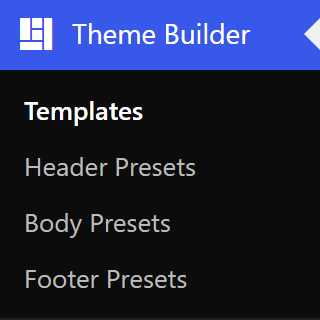
Activating the extension adds a Theme Builder menu (just under Appearance) with:
- Templates — the management grid (Name / Header / Body / Footer / Used On). This is where you create Templates and set their conditions. It leads the menu (and is the menu's landing page) because it's the hub you'll revisit most.
- Header Presets, Body Presets, Footer Presets — the page‑builder‑authored parts, each a normal post list you edit straight in the builder. Each list comes pre‑seeded with a few starter designs so you're never staring at a blank canvas — edit, duplicate, or delete them freely.
A Template's three slots are independent: leave Header or Footer as Inherit to fall through to your existing header/footer, and leave Body as None to render the normal page content.
A typical workflow
A clean way to build a custom home page (or any designed page) without cramming the design into a global part:
- Build the page in the page builder — sections, columns, and content elements — as a normal Page.
- Design the layout in a Header Preset / Footer Preset (and, if you want a wrapper, a Body Template that contains just the Post Content element).
- Bundle + place with a Template: assign the header/footer (and that post‑content body), and set Use On → Front page (or the specific page).
Now the page's own builder content flows into your designed chrome, and the design lives where it belongs — in the page, not duplicated into a global body. See Body Templates → the Post Content pattern.
In this section
- Headers & Footers — building header/footer presets, the Header Type & Scroll Behavior, the trimmed palette, and the header/footer fallback chain.
- Body Templates — full‑page bodies, the Post Content pattern, the three render modes, and the Loop Layout.
- Flexbox — the semantic layout engine: tag, direction, justify, align, width, and nesting.
- Dynamic Content — the Post Content / Post Title / Featured Image… element
family and
{{token}}tags. - Conditional assignment — Templates, the Use On / Exclude From vocabulary, and how the winning Template is chosen.
- How it renders — the native theme integration and the theme‑independent takeover / surgical swap that make presets work under any theme.
- Developer reference — the CPTs, the post‑meta contract, the render helpers, the resolver API, the filters, and the security model.