Conditional assignment
A Template binds a Header + Body + Footer (each optional) to a block of conditional rules, and decides where those parts apply. Templates are managed in the Theme Builder → Templates grid, not the normal post editor.
Creating a Template
In the grid, click Add Template. The edit form is two simple steps:
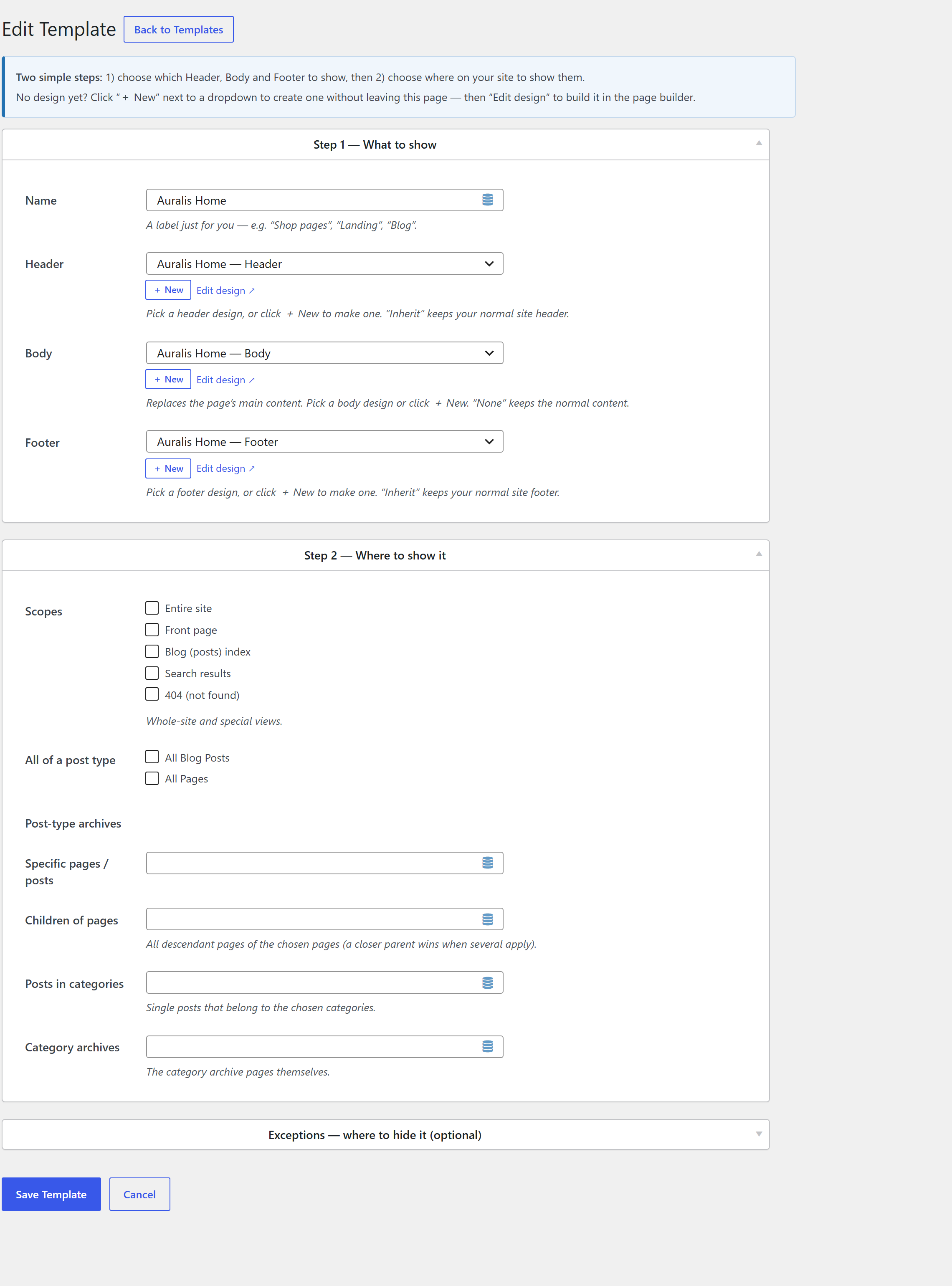
- Step 1 — What to show. The Name, and a Header / Body / Footer select. Header and Footer default to Inherit (use the normal site header/footer); Body defaults to None (keep the normal page content). A + New link next to each select creates a matching preset without leaving the page, and Edit design opens it in the builder.
- Step 2 — Where to show it (Use On). Where the Template applies.
- Exceptions — where to hide it (Exclude From). Where it's suppressed (wins over Use On).
The grid lists each Template's parts and a short Used On summary. Rows can be Edited, Duplicated, or Deleted (deleting a Template never deletes its header/body/footer designs).
Every field on the Template form has the Dynamic Content picker turned off. A Template is global
assignment data — a name and where/where‑not rules — not post‑contextual, so {{tokens}} would have
no meaning. (Dynamic content belongs inside the parts; see
Dynamic Content.)
A Template whose Use On is Entire site is your site‑wide default. The empty‑grid screen offers a one‑click Create a Default Website Template to seed it.
Use On / Exclude From vocabulary
Both sides share the same set of controls:
| Control | Targets |
|---|---|
| Scopes | Entire site · Front page · Blog (posts) index · Search results · 404 (not found) |
| All of a post type | All Pages · All Posts · All <your CPT> |
| Post‑type archives | The archive page of a post type (only those that have an archive) |
| Specific pages / posts | One or more individual pages/posts (searchable) |
| Children of pages | Every descendant page of the chosen pages (a closer parent wins when several apply) |
| Posts in categories | Single posts that belong to the chosen categories |
| Category archives | The category archive pages themselves |
| WooCommerce (when active) | Shop · Cart · Checkout · My Account page scopes, plus Products in product categories and Product category archives. (All Products / specific products / the product archive come through the normal post‑type controls, since product is a post type.) |
Use On is OR‑ed (the Template applies if any rule matches). Exclude From is also OR‑ed and wins (if any exclusion matches, the Template is suppressed for that request).
How the winning Template is chosen
On each front‑end request the resolver collects every published Template, drops those whose Exclude From matches, keeps those whose Use On matches, and ranks the survivors by specificity. The most specific wins; newest wins ties.
Specificity, most specific first:
| Rank | Match | Weight |
|---|---|---|
| 1 | A specific single post/page | 100 |
| 2 | A single post in a specific category · a specific term archive | 80 |
| 3 | A descendant of a specific page (closer parent scores higher) | 75+ |
| 4 | A post‑type archive · all archives of a taxonomy | 60 |
| 5 | All singular of a post type | 50 |
| 6 | A conditional tag (front page / search / 404 / …) | 40 |
| 7 | Default / entire site | 10 |
The winning Template supplies the header_id / body_id / footer_id for that request, which then
drive the render. A part left as Inherit (header/footer) or None (body) falls through — see
How it renders and the
header/footer fallback chain.
Matching uses only native WordPress conditionals (is_singular, in_category,
is_post_type_archive, is_404, …), never eval or request‑derived includes. Resolution is
front‑end only (it bails in wp‑admin, feeds, and oEmbed) and is request‑cached. See
the security model.
Previewing
You don't have to publish a Template (or assign a preset) to see it. The Templates grid gives each row a Preview action, and the Header / Body / Footer preset lists each get a Preview row action too. Preview opens the front end with that Template — or that single preset — forced onto the page, rendered through the normal cascade (native or theme‑independent), with a small fixed "Theme Builder — Preview" badge so it's clear you're looking at a preview and not the published result.
Preview is gated: it only works for a logged‑in user who can edit_theme_options, and the link
carries a nonce — a preview URL can't be shared to force a render for anyone else. Nothing is saved;
close the tab and the live site is unchanged.
Debugging "what renders here?"
When several Templates could apply, you don't have to guess which one wins. With a Template defined,
the front end shows a Theme Builder node in the admin bar (for editors): it names the
resolved Template for the page you're viewing, lists its Header / Body / Footer (with edit links),
and lists every matching or excluded Template with its specificity score (WINS / score N /
excluded). Browse the site and watch the winner change — overlapping rules become obvious.
Bundling & importing a design
Each Template row has an Export action that downloads the whole design as one JSON file — the
Template's conditions and the full Header / Body / Footer builder content and their settings
(scroll behavior, per‑preset custom CSS/JS). It's the up-templates/*.json format, so dropping it in
a theme's up-templates/ folder auto‑imports it on activation.
To load one back, use Import Design (next to Add Template): it recreates the Template and fresh Header/Body/Footer presets from the file. So a complete starter site travels as a single file — handy for shipping or selling demos.
See also
- Headers & Footers · Body Templates
- How it renders — what happens after a Template wins
- Developer reference — the resolver API and the stored condition shape