Build your first child theme
The Unyson+ Theme is the parent; what you actually ship to a site is a child theme of it. The child inherits every template and design token from the parent and overrides only your brand. This guide gets a working child theme on screen in a few minutes.
You could change Theme Settings on the parent directly, but a child theme keeps your brand (logo, colors, any template overrides) in your own package, so a parent-theme update never overwrites it.
1. Create two files
In wp-content/themes/, make a folder (e.g. acme/) with two files.
style.css — the Template: line is what makes it a child of the Unyson+ Theme:
/*
Theme Name:  Acme Site
Template:    unysonplus-theme
Version:     1.0.0
*/
functions.php — load the parent's stylesheet:
<?php
add_action( 'wp_enqueue_scripts', function () {
    wp_enqueue_style( 'parent-style', get_template_directory_uri() . '/style.css' );
} );
That's a complete, working child theme.
2. Activate it
Go to Appearance → Themes and activate Acme Site. Your site now runs on the full Unyson+ Theme, with your child as the active package. (You need the Unyson+ plugin and the unysonplus-theme parent present.)
3. Brand it in Theme Settings
Open Appearance → Theme Settings. This is the global design layer: colors, typography, the header and footer, layout, and custom CSS. Set your palette and fonts here and the whole site (and the page-builder elements) follow, no CSS required.
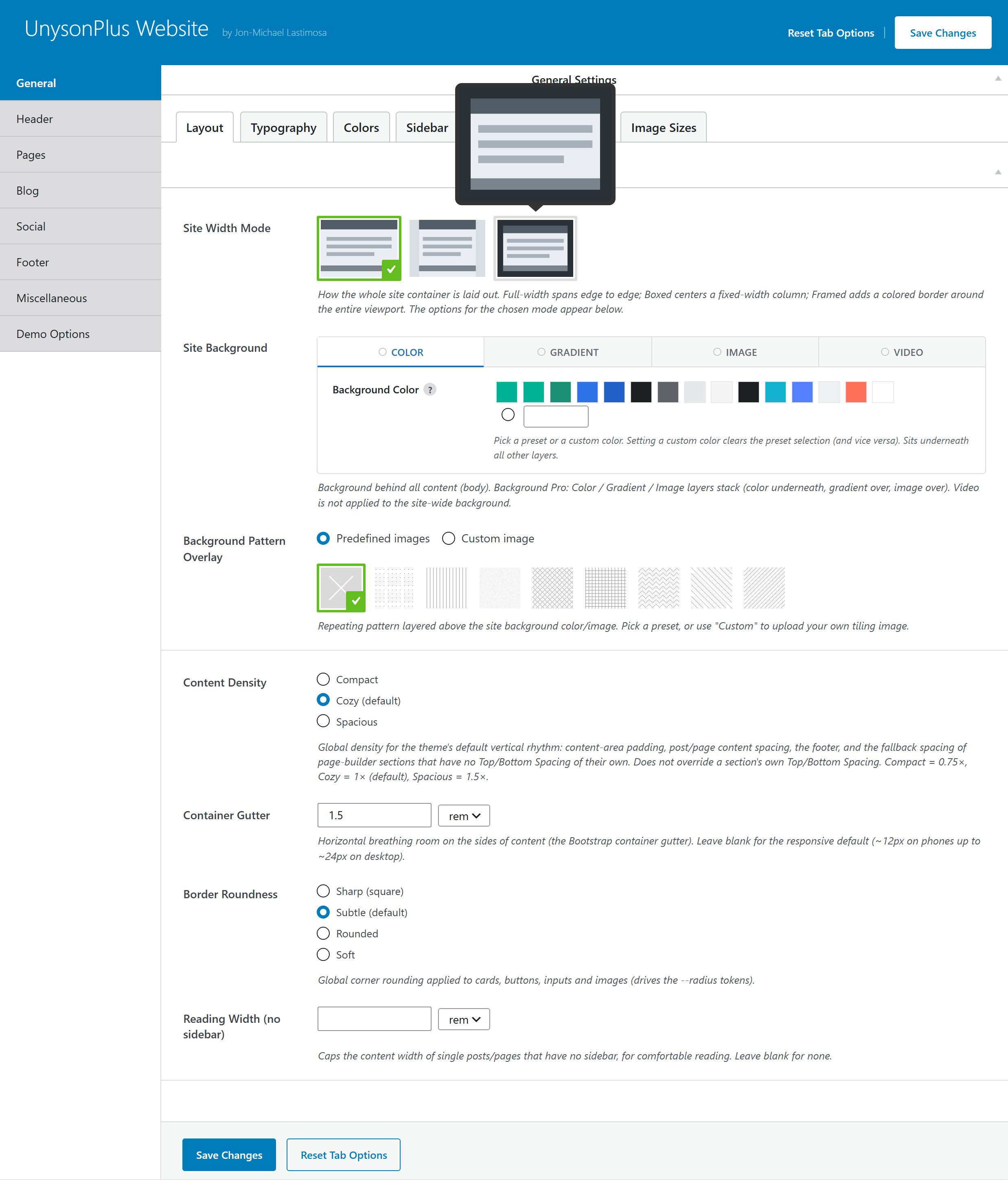
Everything you change is compiled into a single generated stylesheet, see How settings become CSS.
4. Override a template (optional)
Need to change a template? Copy the parent's file into your child at the same path and edit it, the
standard WordPress child-theme override. For example, to customize the footer, copy
unysonplus-theme/footer.php to acme/footer.php.
You can also override extension files and add Theme Settings through
acme/framework-customizations/, the same mechanism the parent uses (see
the extension system).
5. Ship it
There are two things you might distribute, and they travel separately:
- The theme — zip the child folder and install it like any theme, or push it to a GitHub repo and let the bundled auto-updater keep it current.
- The design — colors / fonts / header / footer / custom CSS live in Theme Settings, not the files. Move them between sites with the built-in design export/import (Theme Settings → Miscellaneous → Export / Import).
Full detail (overrides, the three customization layers, design export rules) is in Child themes.
What's next
- Build pages — Build your first page with the visual builder.
- Understand the stack — The Theme covers the parent/child relationship in depth.
- Go deeper — the For Developers section covers adding shortcodes, option types, and extensions.