Build your first page
This walkthrough takes you from a blank page to a published one using the Page Builder. It assumes you've installed Unyson+ and activated the Shortcodes and Page Builder extensions (Unyson+ → Extensions).
By the end you'll have placed a section, added an element, configured it, and seen it render on the front end. Five minutes, no code.
1. Open a page in the builder
Create or edit a page (Pages → Add New), then click the Unyson Builder button above the content area to switch from the default editor to the visual builder.
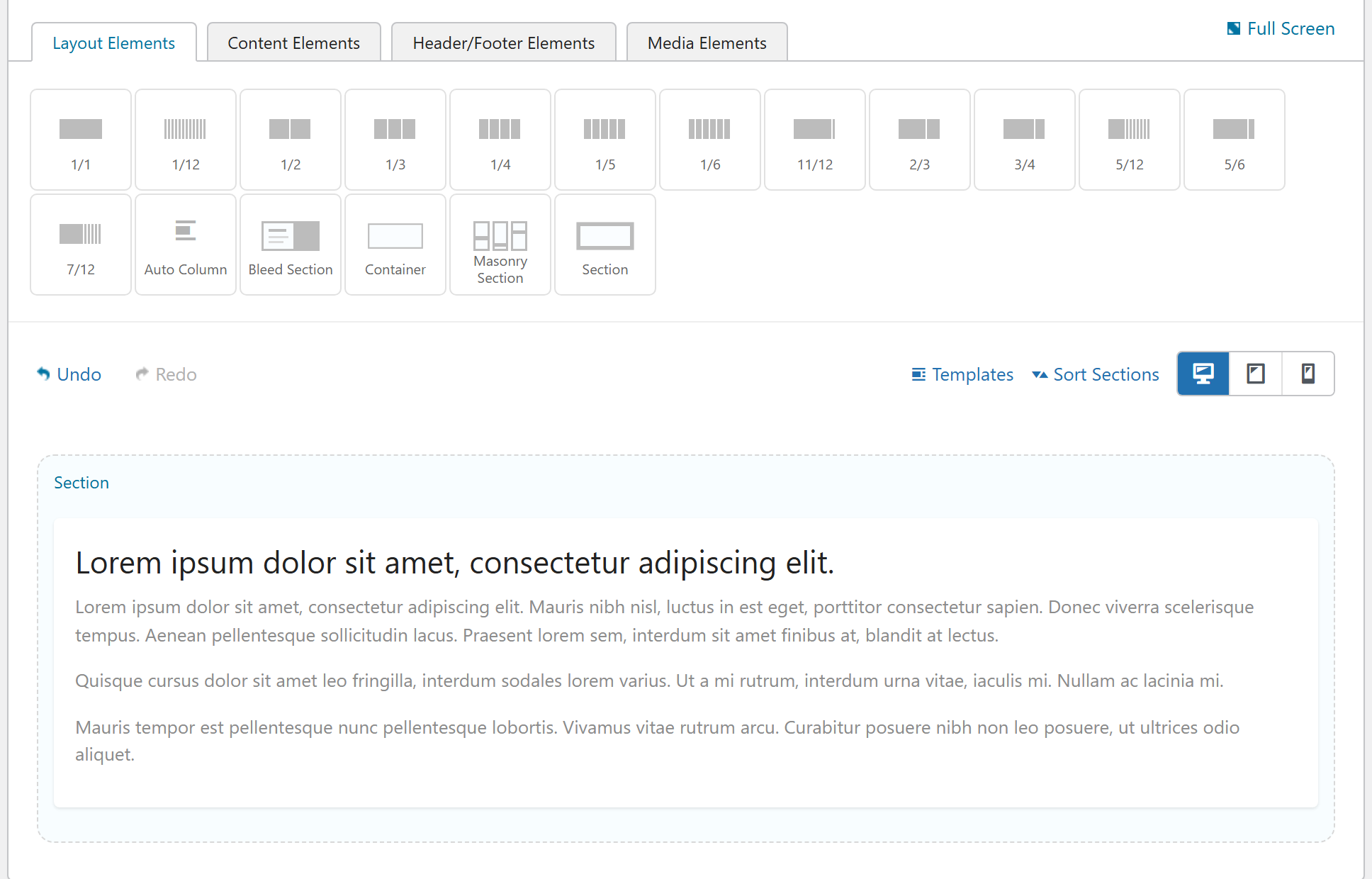
You'll see two parts: the element palette (grouped into Layout, Content, Media, Interactive, Components, Header/Footer) and the canvas where your page takes shape.
2. Add a Section
Everything on a page lives inside a Section (a full-width band). From the Layout Elements tab, drag a Section onto the canvas.
If you drag a content element (a heading, a button) directly onto the canvas, Unyson+ automatically wraps it in a column, a row, and a section for you when the page renders. The items corrector handles that, so you never end up with an invalid grid.
3. Drop in an element
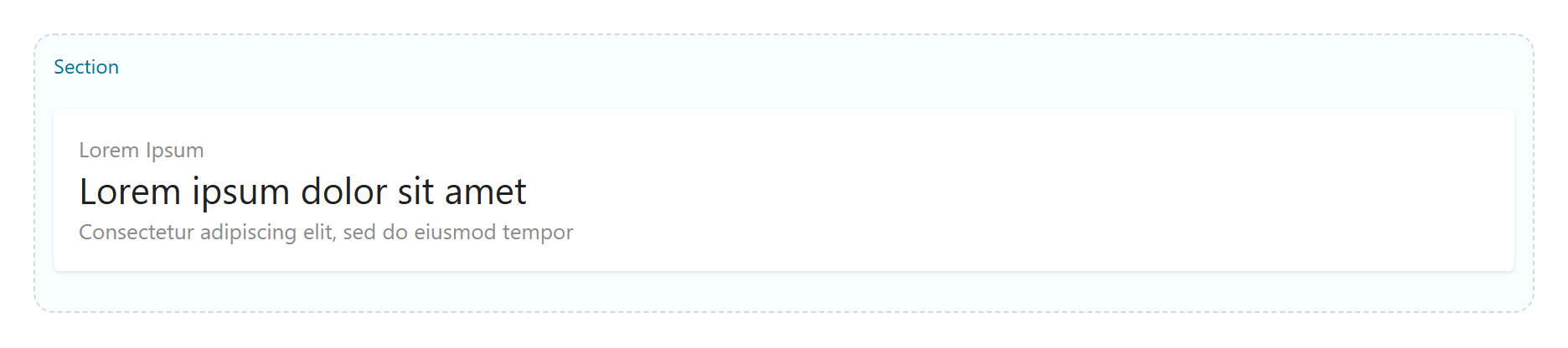
Open the Content Elements tab and drag a Special Heading into the section. The element appears on the canvas with a controls bar (edit, duplicate, delete) when you hover it.
4. Configure it
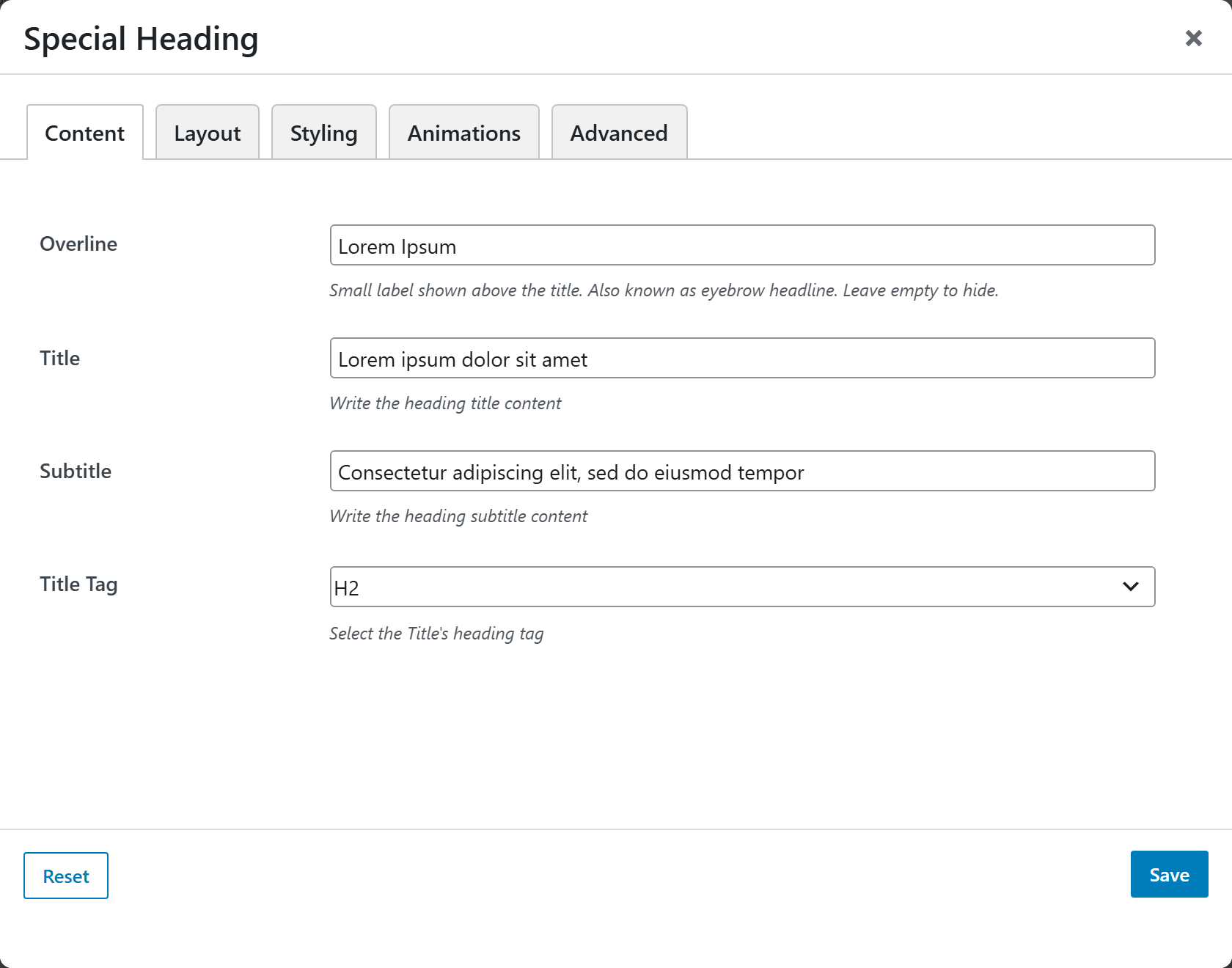
Click the element (or its edit icon) to open its options panel. Each tab groups related settings; type your overline, title, and subtitle, and adjust alignment or styling. Changes preview live on the canvas.
Any text field with the small database icon supports Dynamic Content: insert
a token like {{site_name}} or {{current_year}} and it resolves to a live value at render time.
5. Build out the layout
Add a Row, split it into Columns, and drop elements into each. Column widths use simple
fractions (1_2, 1_3, the single 1_5 fifth, …) and wrap responsively, see
Column widths. Use the Desktop / Tablet / Phone toggle to
preview each breakpoint while you edit.
6. Save and view
Click Update (or Publish). Unyson+ converts your layout to clean, semantic HTML and renders it on the front end, no wrapper-div soup, one generated stylesheet. View the page to see it live.
What's next
- Reuse a layout — save a section as a template, or build a Snippet you can embed anywhere.
- Understand the output — How the Page Builder works explains the edit → stored JSON → render pipeline.
- Brand the whole site — set global colors, fonts, header and footer in Theme Settings, then ship it as a child theme.
- Browse every element — the Elements reference documents all 54.