Lottie Animation
Play an animated Lottie vector (a .json from After Effects / LottieFiles) with autoplay, hover, on-scroll or click triggers, loop, speed and direction. Its options are organized across the Content, Design, Styling, Animations and Advanced tabs.
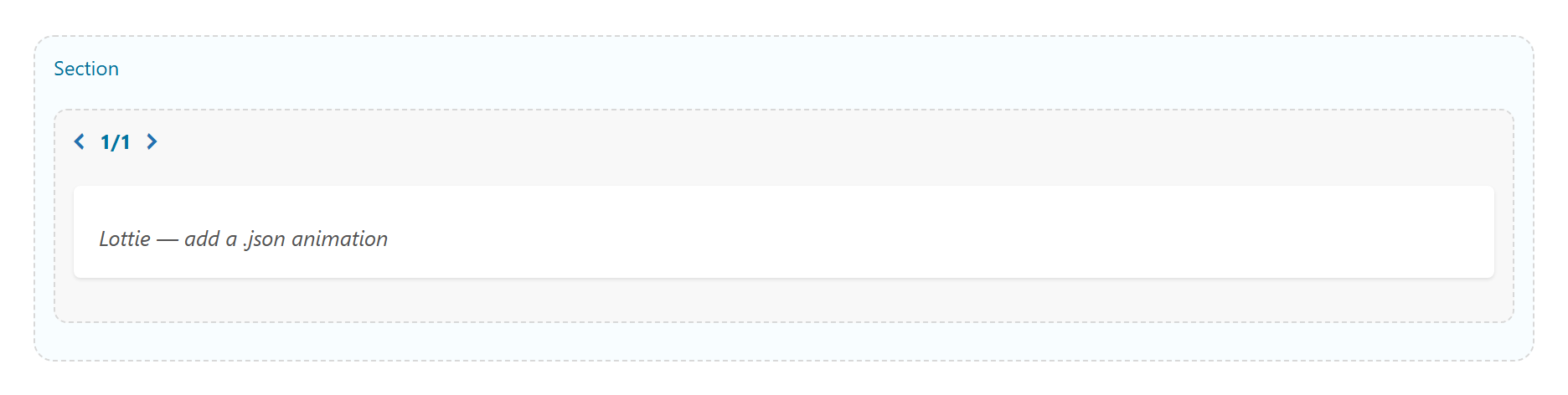
Content
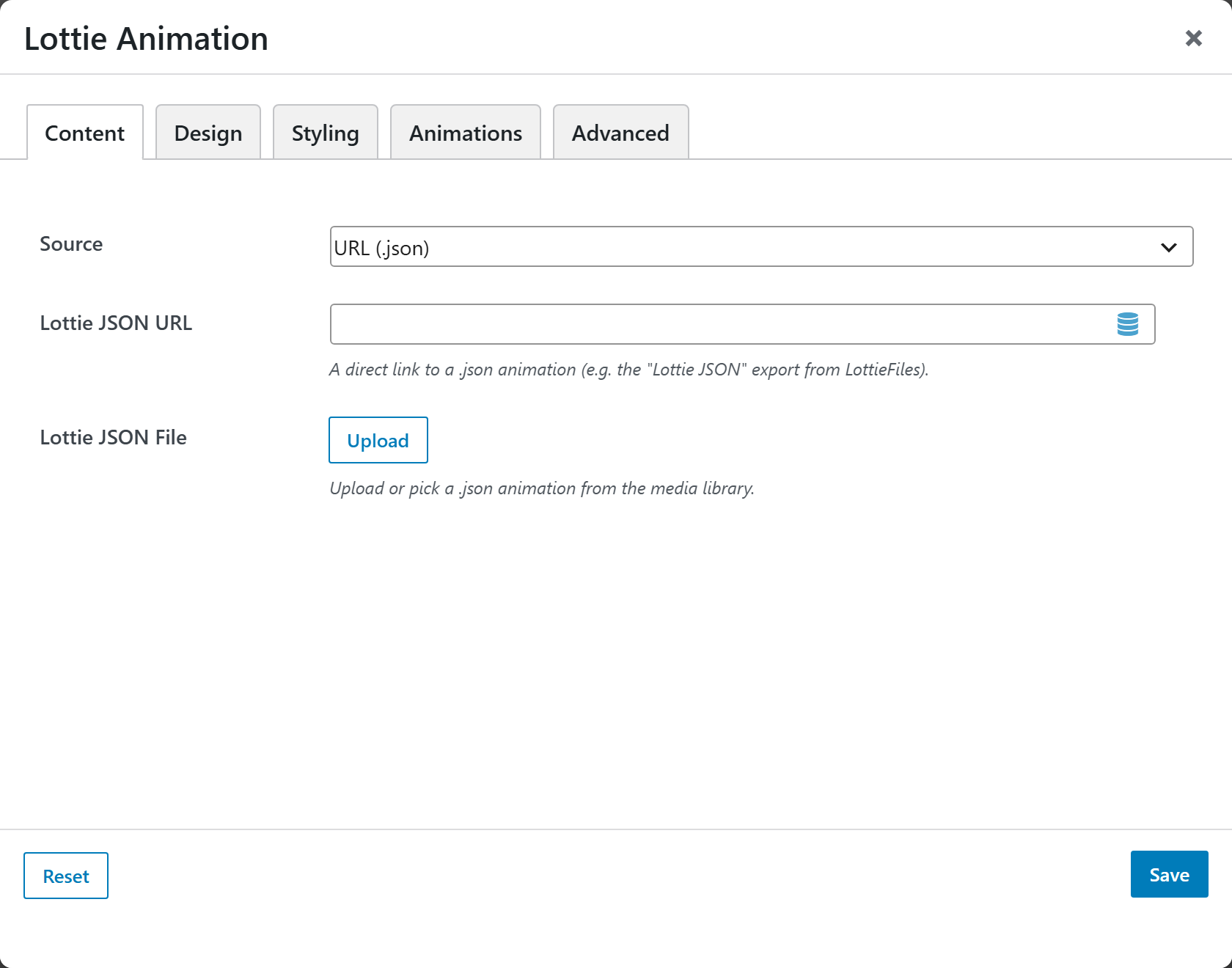
- Source — where the animation comes from: URL (.json) (default) or Upload / Media Library.
- Lottie JSON URL — a direct link to a
.jsonanimation (e.g. the "Lottie JSON" export from LottieFiles). Must be a.jsonLottie/Bodymovin file, not a.lottieor GIF. - Lottie JSON File — upload or pick a
.jsonanimation from the media library.
Design
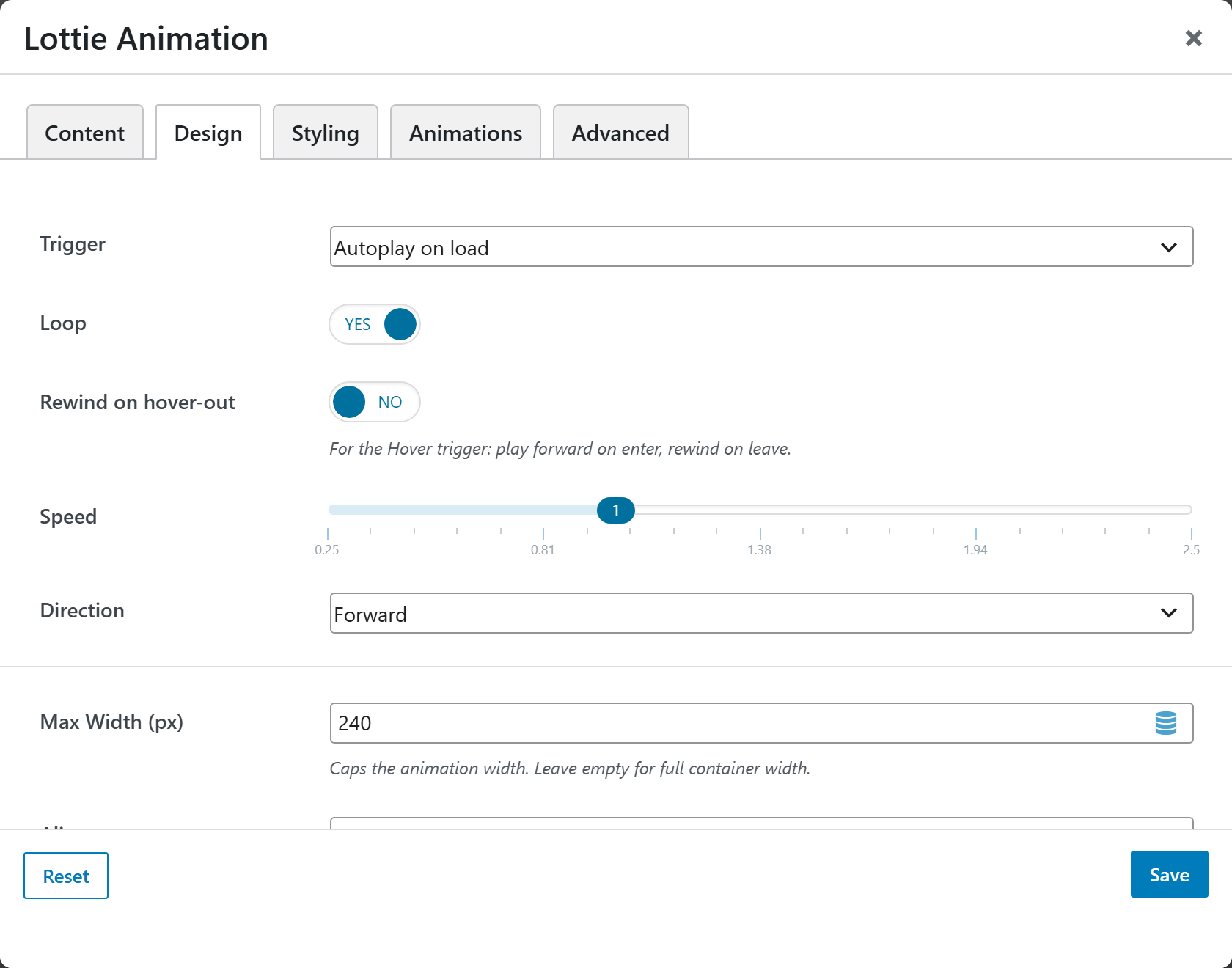
- Trigger — when the animation plays: Autoplay on load (default), Play when scrolled into view, Play on hover, or Play / pause on click.
- Loop — repeat the animation. Defaults to Yes.
- Rewind on hover-out — for the Hover trigger, play forward on enter and rewind on leave. Defaults to No.
- Speed — slider from 0.25 to 2.5 (step 0.25); defaults to 1.
- Direction — Forward (default) or Reverse.
- Max Width (px) — caps the animation width; leave empty for full container width. Defaults to
240. - Alignment — Left, Center (default), or Right.
Styling
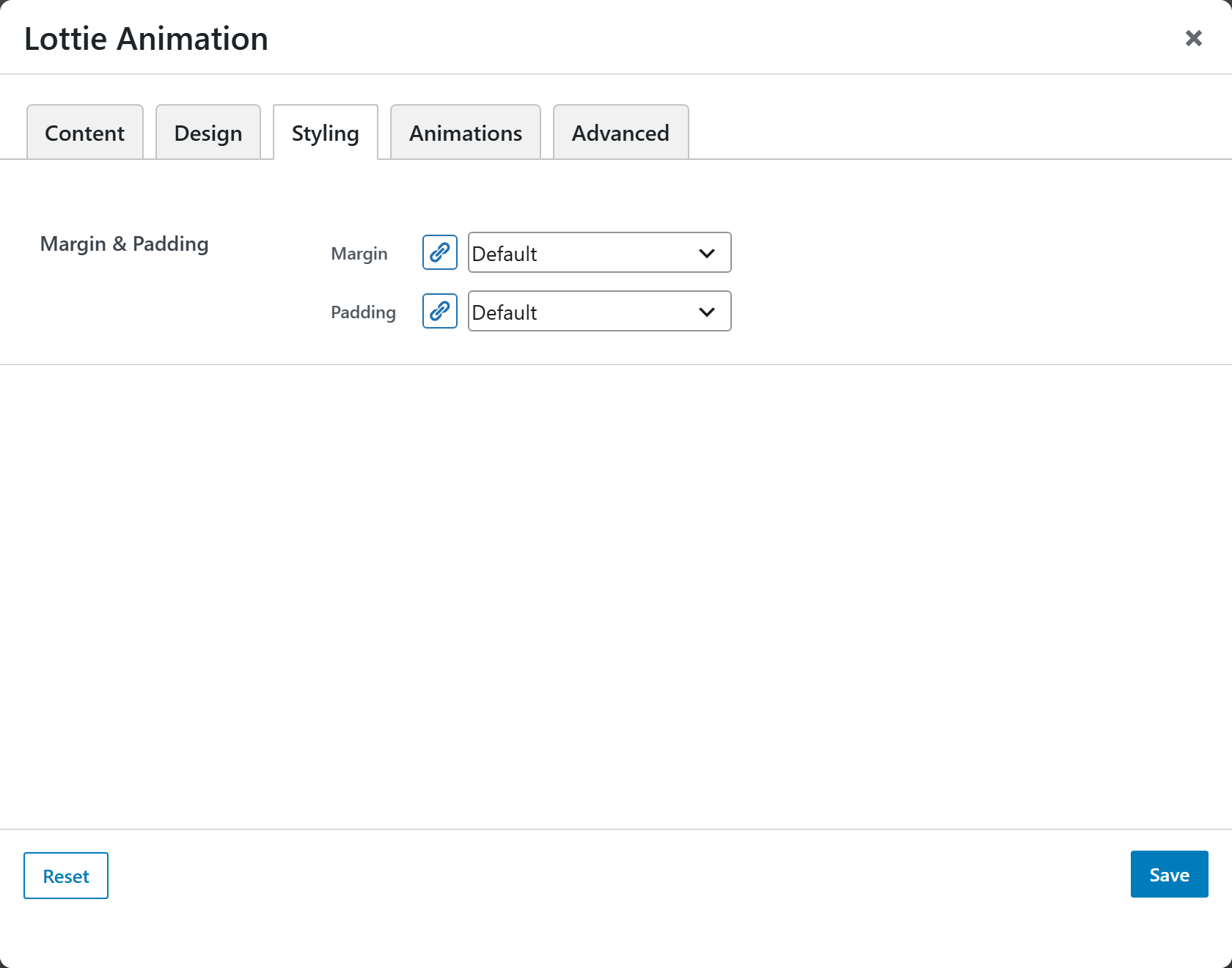
- Margin & Padding — spacing around the element.
Animations
Standard entrance-animation controls (effect, duration, delay, offset).
Advanced
Custom CSS class/ID, responsive visibility toggles, custom attributes, and margin/padding.